How to Use Canvas Tasks
When your to-dos, your shopping, and your daily habits all live in one list, it overflows fast and opening it starts to feel like a chore. Canvas Tasks keeps your head clear by giving each kind of thing its own place. Here's which one to use, and when — shown on the actual screens.
An idea, a shopping note, a daily stretch, a deadline-bound project — these are all "things to do," but they want to be handled in completely different ways. Pile them all into one to-do list and it overflows fast, the things that matter get buried, and just opening it starts to feel heavy.
Canvas Tasks solves this by giving each kind of thing its own place. Below are the five homes, and which one to use when — shown on the actual screens.
1. Fleeting thoughts go to the Inbox
Something that just popped into your head, something to think about later, a fragment that isn't a task yet. Drop it into the Inbox as a single line. No category, no deadline required — the point is just to catch it.
Later you can come back to tag it, add notes, promote it into a task, or grow it visually on the Draft Board. Knowing "if I put it here I won't forget it" quietly reduces the tasks running in the back of your mind.
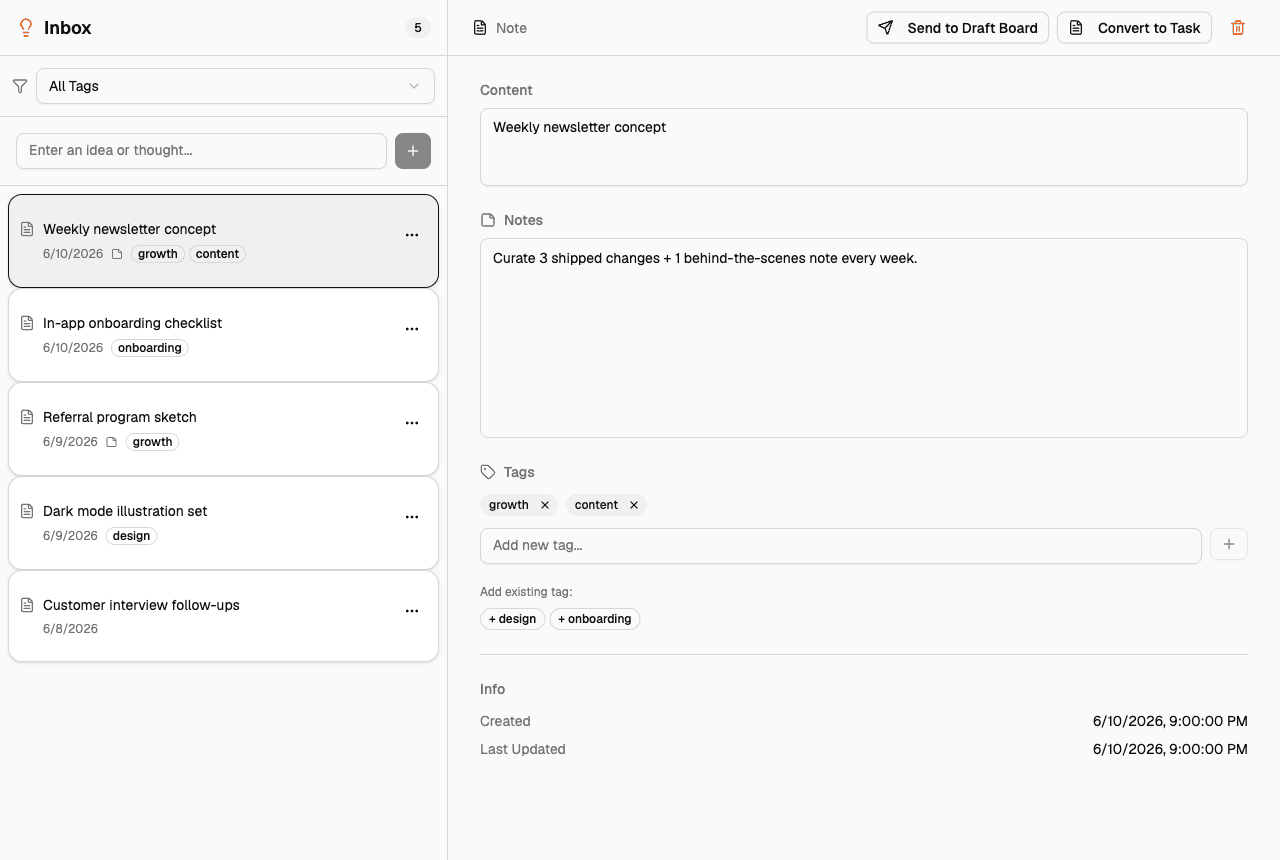
Use it for: a project idea you had on the train, a book to read, a someday-maybe.
2. Shopping and checklists go to Lists
Milk and eggs, what to pack for a trip, the steps of a routine chore — light things you want to check off but that don't deserve to be full tasks. These go in a List.
Lists are lighter than tasks and quick to build, with three levels: list → item → sub-item. Keeping them in a separate lane from your heavy work keeps both uncluttered.
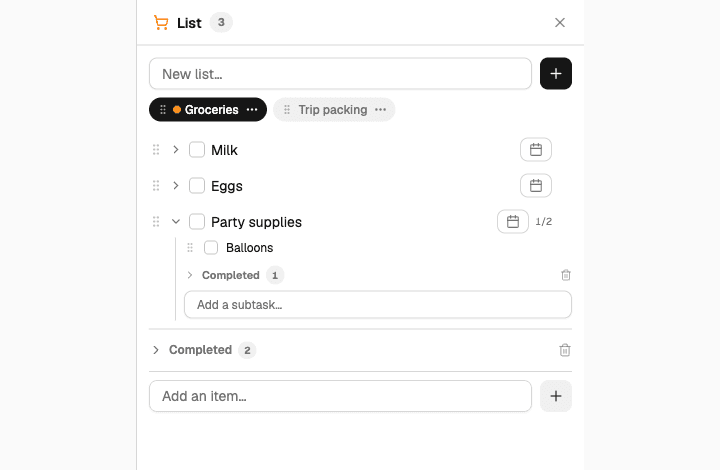
Use it for: a grocery list, trip packing, a repeatable checklist.
3. Daily habits go to Routines
Drink water, stretch, journal — things you do every day but that don't need to become tasks each time. Check these off as Routines.
Routines are split into four parts of the day: morning, daytime, evening, and before bed. What matters most is that missed days don't pile up. Skip a day and nothing carries over as a penalty the next morning — so a habit never becomes a mountain of guilt.
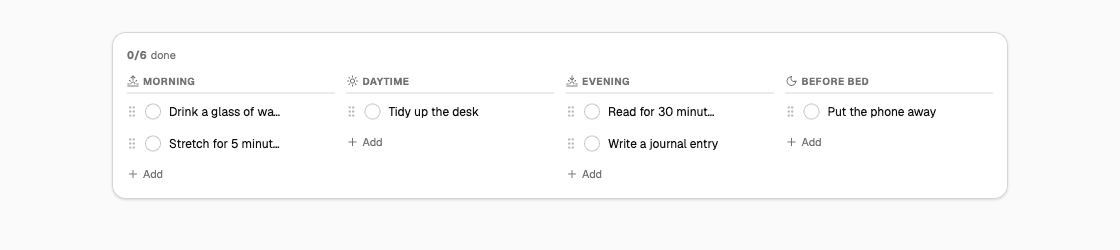
Use it for: a morning stretch, an evening wind-down, staying hydrated.
4. Work that takes a few sessions goes to Tasks
The deadline-bound, main-line work you finish over a few sessions — that's a Task. You can label each task with the energy it needs (high / medium / low) and its nature (Creative, Thinking, or Work).
That turns a question a flat list can never answer — "given the state I'm in right now, what should I actually start?" — into something you can see. When your energy dips in the late afternoon, you can pick just the light Work tasks.
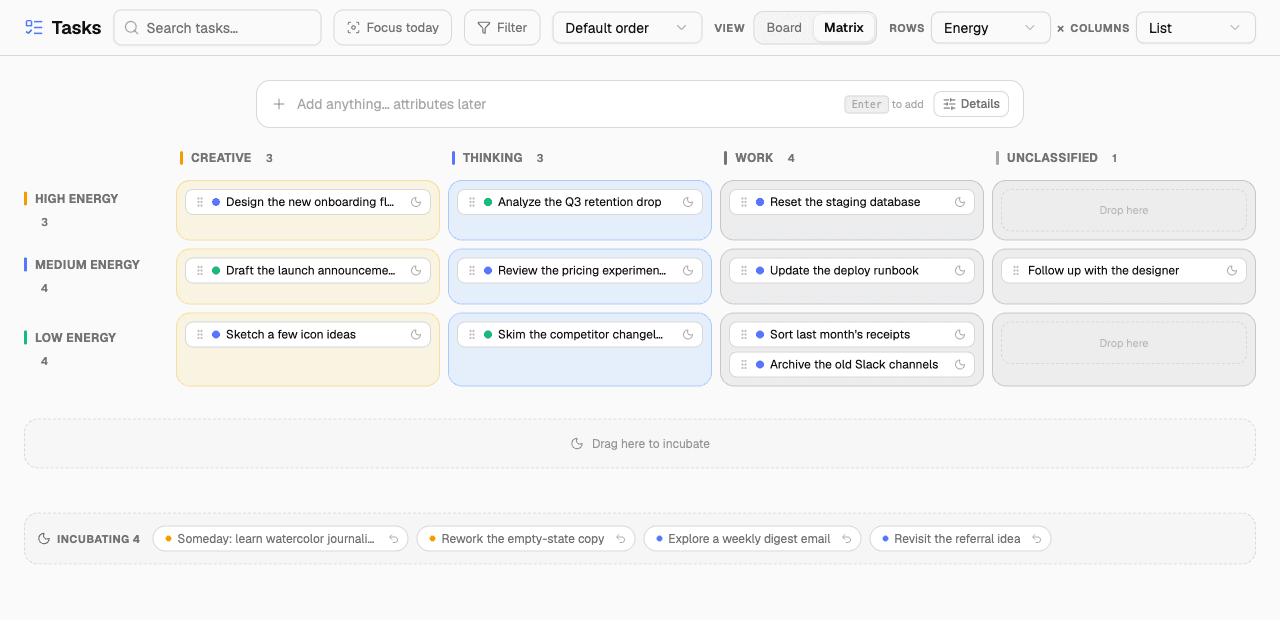
Use it for: putting together a deck, writing an article, a deadline-bound deliverable.
5. Things too big for one task go to Projects (Pro)
A big lump like "ship the app" that won't fit into a single task. Force it into one and it never finishes and just weighs on you. Bundle these loosely into a Project and group the related tasks beneath it.
A Project is a thin lens that only shows progress and time as derived values — it never clutters the board itself.
Running your day — decide in the morning, reflect at night
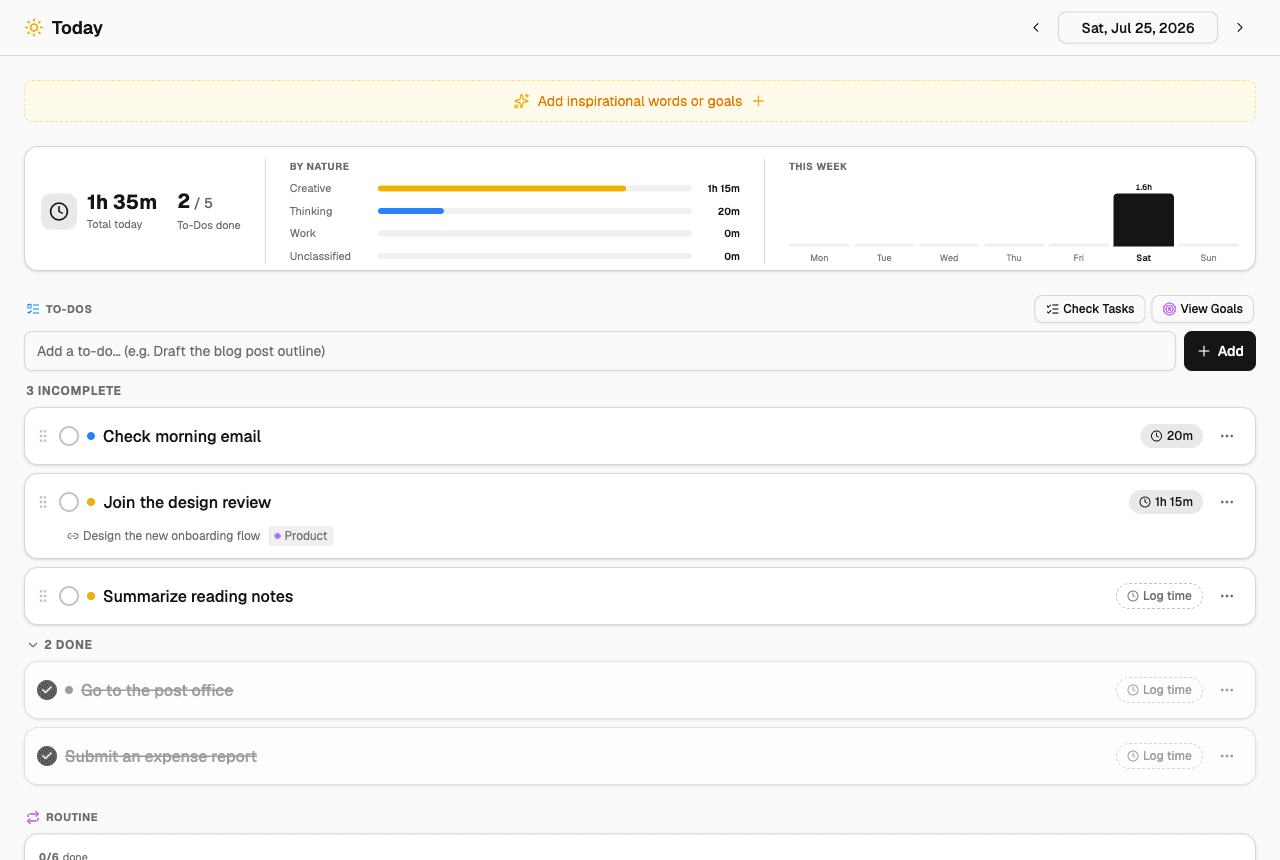
Once things have a home, the rest is a daily rhythm. Canvas Tasks uses the Today view as the backbone of your day.
- The night before, or in the morning: decide what to do today. Pull a few items from your backlog into today's to-dos.
- During the day: Focus shows one item at a time, large, so you can stay with the work in front of you.
- At the end of the day: reflect. Jot down what went well, your mood, and your energy.
It's fine when the plan falls apart. The Today view is built to show that you moved forward at all — not "all or nothing." Miss a day and you can simply pick things back up the next.
Just giving things separate homes makes your head much lighter. Start by dropping a single thought into the Inbox.